> ## Documentation Index
> Fetch the complete documentation index at: https://docs.saasio.io/llms.txt
> Use this file to discover all available pages before exploring further.
# Quickstart
> Your 5-minute guide to signing up, logging in, and creating your first SaaS project in Saasio.
***
Welcome to Saasio! This guide will get you from zero to your first project in under five minutes. We'll walk through creating your account and launching your first application.
Let's begin.
***
## Part 1: Create Your Account
Your Saasio account is your personal workspace.
Navigate to [**Saasio.io**](https://saasio.io) and click the **Sign Up** button. You will need to provide your email address and a secure password.
Check your inbox for a verification email. Click the link inside to confirm
your account and protect its security. If you don't see it, check your spam
folder.
Once verified, log in with your new credentials. You will be directed to your main **Projects Dashboard**, which is the central hub for all your applications.
***
## Part 2: Create Your First Project
A **Project** in Saasio is a complete, standalone SaaS application. It comes with its own database, pages, and backend logic.
On your Projects Dashboard, click the **"Create Project"** button. This will open the project setup screen.
You will be asked for three key details:
* **Project Name:** A public name for your app (e.g., "AI Content Writer").
* **Project Subdomain:** A unique URL for your app (e.g., `ai-writer.saasio.io`).
* **Description:** A short, internal summary of your project.
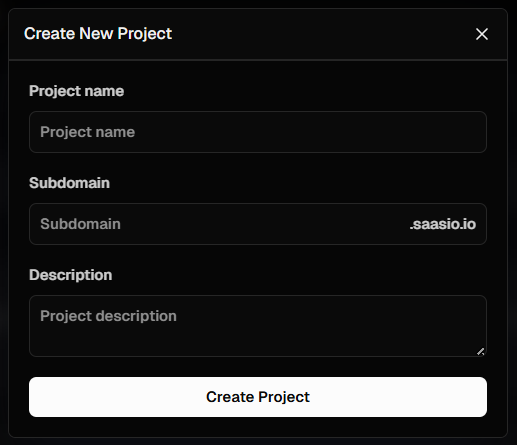 Click **Create Project**. Your project will be set up instantly, and you'll be taken directly into the Saasio Visual Editor.
Congratulations! You are now inside your first project and ready to start building.
Click **Create Project**. Your project will be set up instantly, and you'll be taken directly into the Saasio Visual Editor.
Congratulations! You are now inside your first project and ready to start building.